
Windows Agent Filters
This subsection contains information regarding usage and configuration of Windows Agents filters.
Every system generates a large number of messages and in most cases there is no need to collect everything. Therefore, there is an option to filter unnecessary messages before they are sent to Logmanager. Filtered messages are discarded locally, thus saving some processing power.
There are two basic ways of working with filters:
- Whitelist: Forward only selected messages, discard everything else.
- Blacklist: Discard only selected messages, forward everything else.
Both ways are valid and can be used interchangeably, depending on your needs.

Windows Agent Filters page
Click on create new to define a new filter.
Here are a few examples:
- Discard all Windows events, where ID equals 5158.
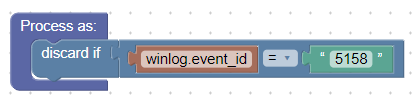
Example 1
- Discard all Windows events, where ID DOES NOT equal 5158. Other way to think about this: Forward only events, where ID equals 5158.
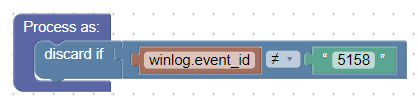
Example 2
- Discard all Windows events, where ID equals 4624, AND field TargetUserName contains “$” character at the end (meaning it’s a machine account).
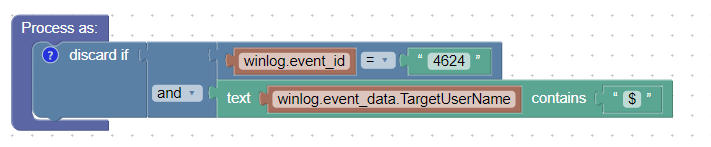
Example 3
- Discard all Windows events, where field TargetUserName matches regex “mail[1-5]{1}", meaning only logs,
where TargetUserName field equals mail1, mail2, mail3, mail4 or mail5, will be discarded. Everything else, that does not match the regex rule, for example mail10 or exchangemail2, will be forwarded.

Example 4
- Discard all Windows events, where the field Channel contains Microsoft-Windows-WMI OR Microsoft-Windows-Push.

Example 5
When using the “discard if” function for filtering, be careful not to put these statements one after the other; it is important to combine conditions using logical operators. When you add separate conditions (one after another), they are combined with the “AND” logical operator.
If you use grouped conditions (multiple conditions in a single block), they are combined with the “OR” logical operator. This is best illustrated by the example below, which uses the logical "=" operator with “OR” logic.
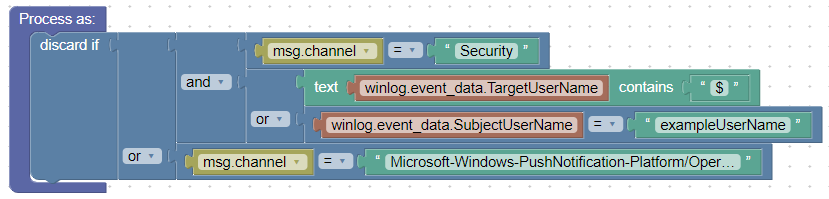
Using grouped conditions (OR)
Another example of a correctly written filter.
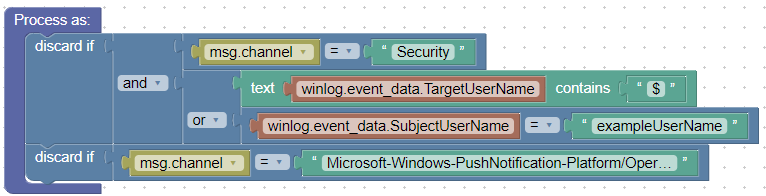
Another example of a correctly written filter (OR)
In this example, we use the negated values of ≠ combined with the “AND” logical operator. This filter discards all events except those generated from the channels mentioned below. In other words, when applying this filter, you will only receive the following logs from the device: Application, Security, System, Microsoft-Windows-Sysmon/Operational.
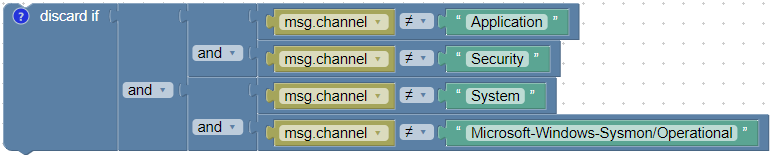
Using grouped conditions (AND)
The Logmanager GUI uses Blockly, a visual programming interface, to create filters. You can find additional filtering examples in the Block > Examples section of the filter editor:
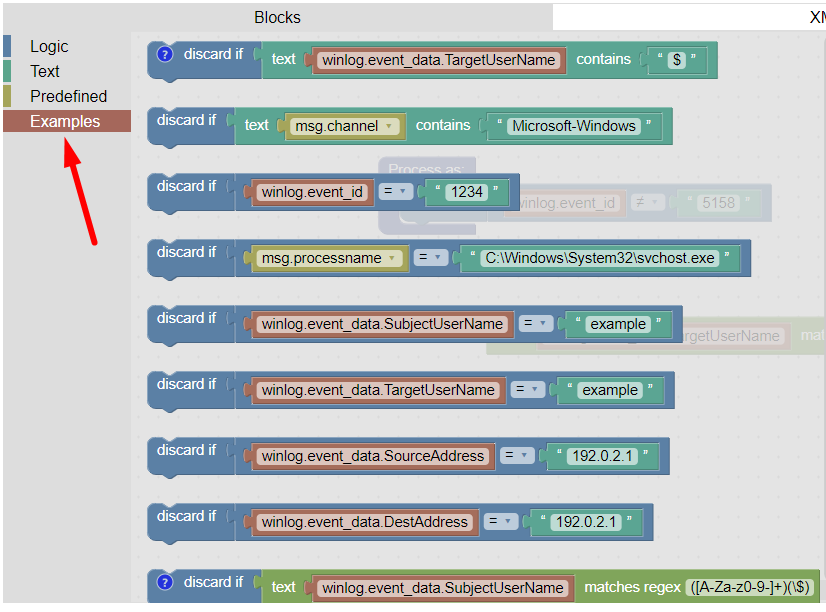
Filtering examples
You can filter on decoded JSON fields from raw messages.
You can also inspect how the Blockly logic translates to XML or YAML format.
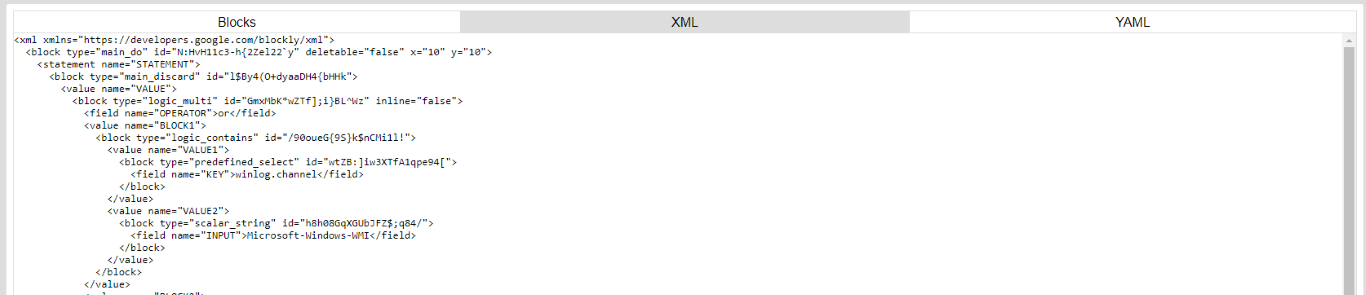
XML view
XML (Extensible Markup Language) is a markup language that defines a set of rules for encoding documents in a format that is both human-readable and machine-readable. Logmanager uses XML to translate graphical Blockly blocks into machine-readable code.

YAML view
YAML is a human-readable data-serialization language commonly used for configuration files and in applications where data is being stored or transmitted. All Windows Agent configuration is written in YAML, so Blockly filters must be translated to this format.