
Windows Agents
This section explains how to configure and view information about endpoints (workstations or servers) connected to Logmanager via Windows agent. Endpoints are added to this table automatically after Windows agent installation.
This page describes the GUI configuration options. If you are looking for specific information regarding the Logmanager Windows agent, such as architecture, installation instructions, changing registry values, or diagnostics, please refer to Logmanager Windows agent.

Windows agents
All table columns are searchable. For example, to search for an endpoint with IP address 192.168.1.1, start typing the IP in the related column field and the table will filter results automatically.
To configure a Windows agent, click the edit button. A new page will open with three sections:
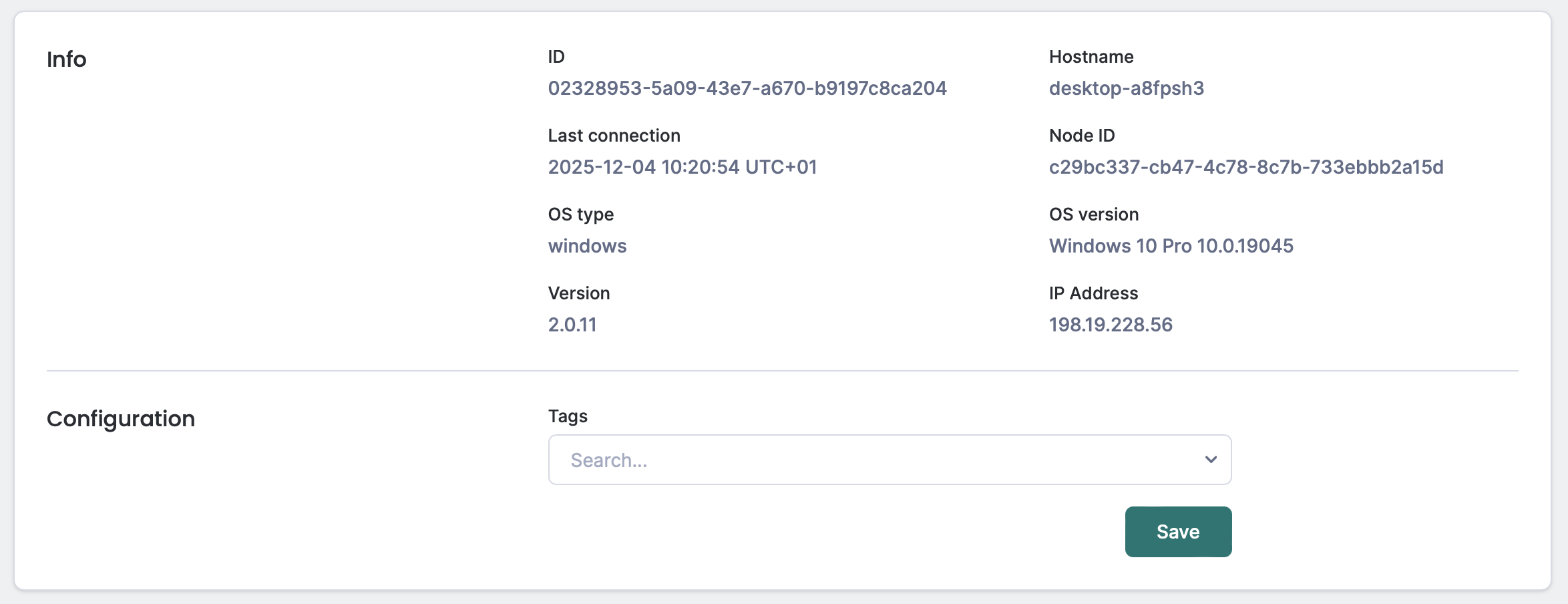
Windows agent detailed information
- ID: Server-generated unique identifier for the Windows agent. This ID is used for API communication.
- Hostname: The name of the endpoint.
- Last connection: Date of the last heartbeat. The Windows agent connects to Logmanager at regular intervals (every hour by default) to send heartbeats. If there have been any configuration changes between heartbeats, they will be automatically downloaded and applied.
The time zone is taken from the browser.
- Node ID: Client-generated unique identifier for the Windows agent.
- OS Type: The operating system where the Windows agent is installed.
Currently, the only supported OS is Windows.
- OS Version: Version of the endpoint’s operating system.
- Version: Logmanager Windows agent version.
- IP: IP address of the endpoint.
- Tags: Tags associated with the agent. All logs sent from this endpoint will include these tags.
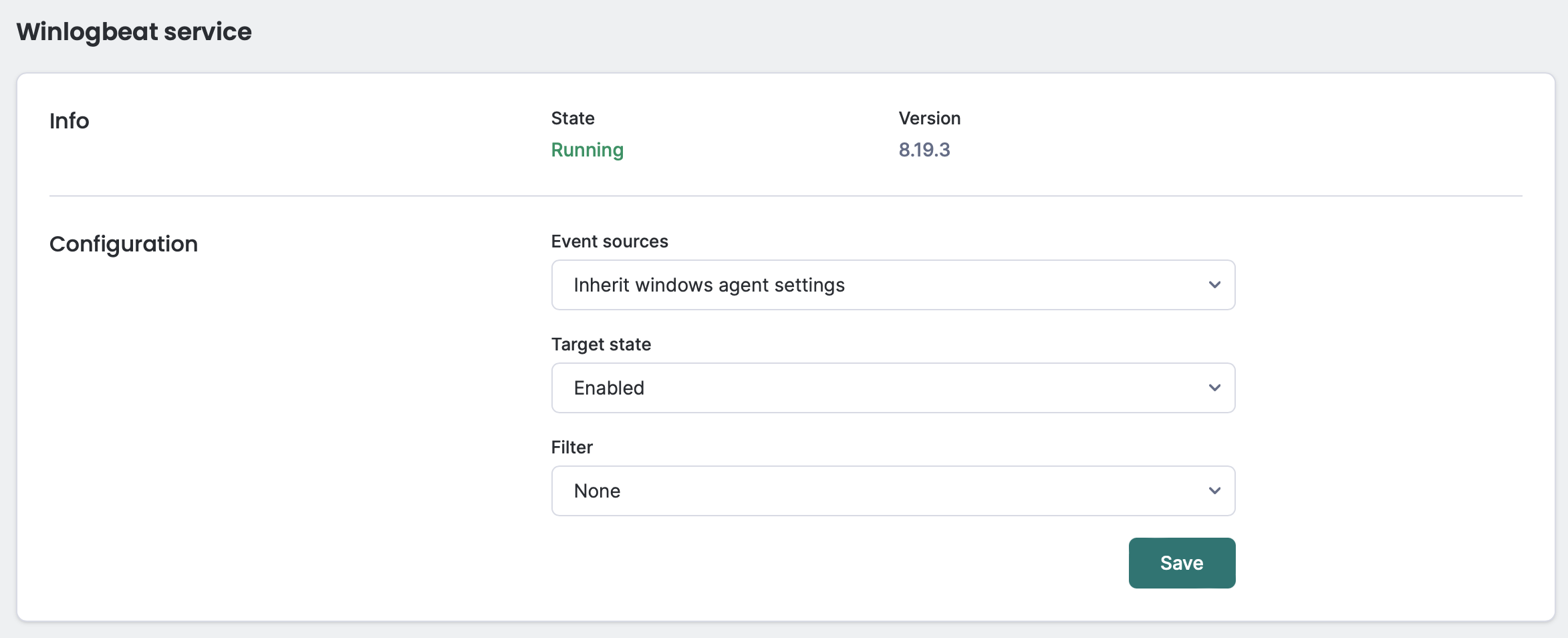
Winlogbeat service config options
This section enables configuration of the Winlogbeat service, which collects Windows Event Logs. You can configure the following:
-
Event sources:
-
- Inherited from Windows agents settings: Use the global setting.
This is the default setting.
- Inherited from Windows agents settings: Use the global setting.
-
- All event sources: Collect all Windows Events (Event Viewer > Windows Logs folder and Event Viewer > Application and Services Logs folder).
Choosing this option will make the agent send every event generated on the endpoint. Consider applying a filter to limit the number of collected events.
- All event sources: Collect all Windows Events (Event Viewer > Windows Logs folder and Event Viewer > Application and Services Logs folder).
-
- System event sources: Collect only System Events (Event Viewer > Windows Logs folder only).
Winlogbeat will ignore events older than 15 minutes during first and subsequent starts. This can result in data loss. For example, if you disable the Winlogbeat service and leave it disabled for more than 15 minutes, logs older than this interval will not be forwarded.
- System event sources: Collect only System Events (Event Viewer > Windows Logs folder only).
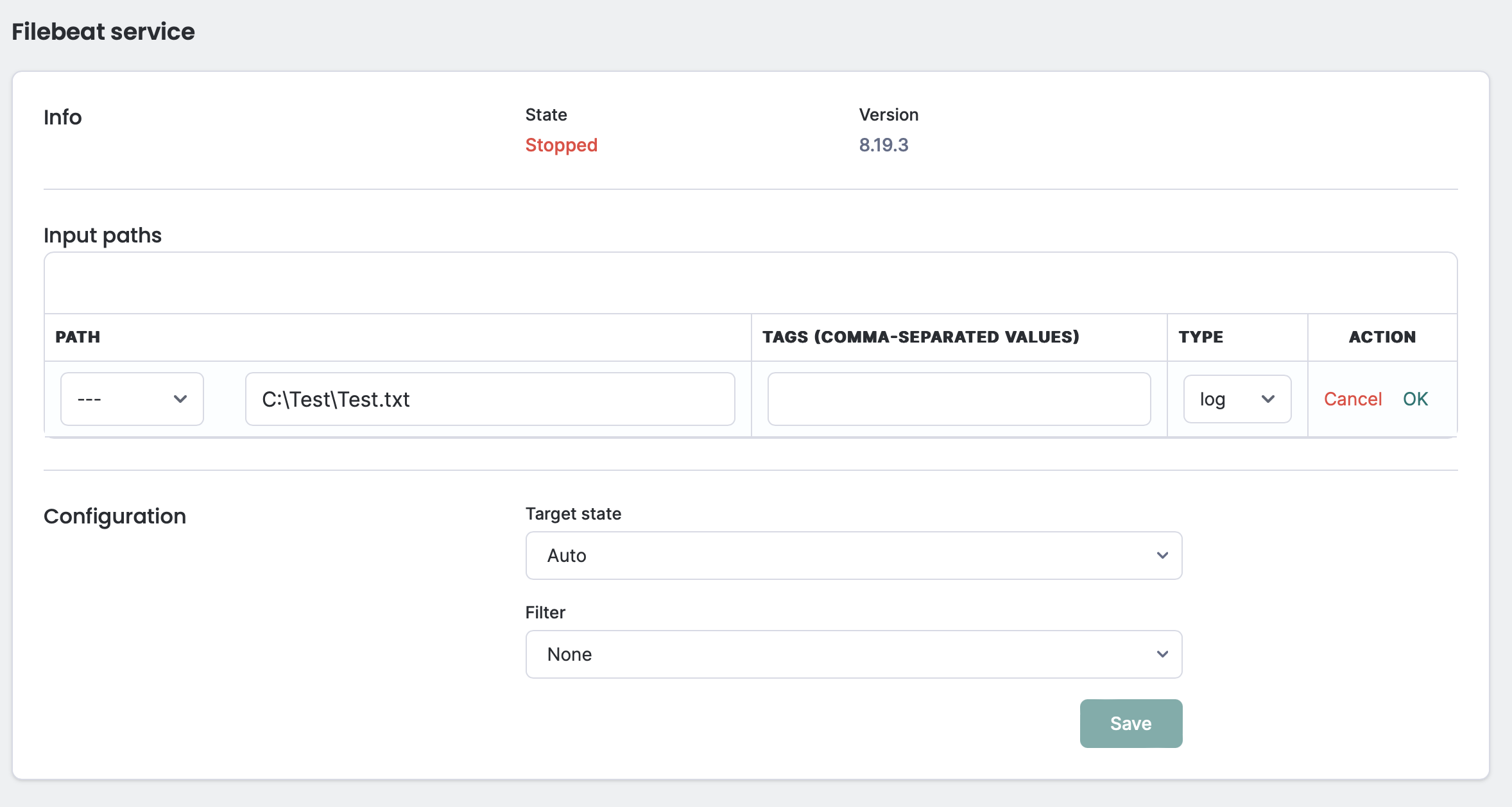
Filebeat service config options
Here you can configure the following:
-
Input paths:
-
- Template: Pre-configured paths to commonly collected log files: DHCP, DNS, Exchange, Firewall, and IIS.
-
- File path: Absolute path to a file. Wildcards are allowed. For example, the path C:\TestData\Log*.txt will instruct the agent to collect every file starting with “Log” and ending with .txt in the TestData folder and send it to Logmanager. Each new line added to the file will be automatically forwarded by the agent.
Take special care with filenames. When creating a new file, Windows by default will hide its type suffix from the file name. For example,test.log.txtwill be presented astest.login File Explorer. Usingtest.logas the File Path will not yield any results as it technically does not exist, and Filebeat won’t be able to find it.
Tags can only contain comma-separated alphanumeric characters. You cannot use the dash symbol.
Verify that the applied path only selects log files and nothing else. Pay extra attention to DHCP logs in Microsoft. The correct path (by default) is: C:\Windows\System32\dhcp\Dhcp*.log. In some cases, Microsoft stores database data in files ending with “.log”. When the agent tries to collect these files, the DHCP service on the server might stop working.
Using a wildcard (*) in the file path makes it case-sensitive! Full paths (for example: c:\tmp\test.log) are resolved directly via the Windows file system, which is case-insensitive by default. However, glob paths (for example: c:\tmp\*.log) are resolved via Go, which is case-sensitive.
Before applying the configuration, verify that there are no more than 2000 files in a directory that will be monitored by Filebeat. If there are more than 2000 files, it is recommended to back up or move them to another directory to limit the number of monitored files to fewer than 2000. Monitoring more than 2000 files can cause various operational or performance problems.
-
- Tags: String-based tags assigned to each log line collected from the file. You can provide multiple tags by separating them with commas. Make sure to use meaningful tags—you will need them to create classification rules.
-
- Type: The type of input file.
Filebeat supports many different input types. The most relevant is the “text” type, which enables collecting any text-based file. This input type is the only one currently supported, but this might change in future releases.
Log file tags are critical for correct parsing! For example, if you choose Exchange from the template to collect Exchange transport logs, the tag “exchange” will automatically be added. Logmanager uses this tag to classify messages properly and direct them to the correct parser. If you delete it, your data will not be parsed correctly.
To avoid overloading your Logmanager instance, only new lines from a file will be forwarded. The default Filebeat configuration sets the offset at the end of the file. This can potentially result in a few log lines being missed during log rotation — when a new rotating log file is created, the application starts writing logs to it before Filebeat has a chance to mark the offset.
- State: current state of service (running/stopped).
- Version: current version of the agent.
- Target state: expected state of the agent service after next config pull (Enabled/Disabled/Auto).
- Filter: filter config assigned to agents. Windows Agent Filters
If you set both this filter and a global filter, they both get applied.
Filebeat state will only be changed to running if Log Files option is configured. Without it, Filebeat agent will not start, as it doesn’t have any source of logs to forward.