
Users list
Logmanager uses user accounts to control access to the web interface and log data. Each user belongs to one or more system groups which determine permissions and visibility. Users can be created locally or synchronized from an LDAP directory.
The Users list page shows all users who have access to the Logmanager system. It displays key information about each user and provides actions to manage user accounts.
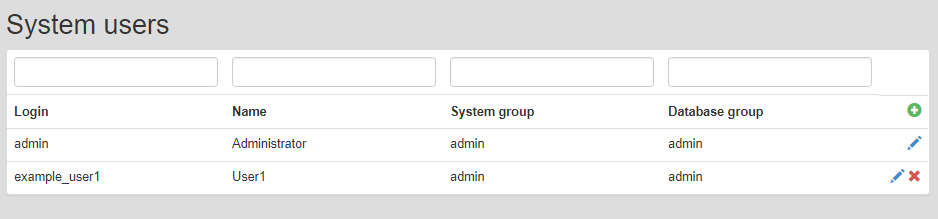
Users list
- Username: The unique identifier used to sign in to the system.
- Full name: The user’s full display name.
- E-mail: The user’s email address.
- Login type: The authentication source of the user (for example, local or LDAP).
- Created at: The date and time when the user account was created.
- Action: Available actions for managing the user account, such as edit or delete.
To create a new user:
- Click the Create new button.
- In the user form, enter the following details:
- Username: The name the user uses to sign in.
- Full name: The user’s full display name.
- E-mail: The user’s email address.
- Password: The password used to sign in to the account.
- Repeat password: Re-enter the password to confirm it.
- Available system groups: The system groups that can be assigned to the user to define permissions.
- Click Save to create the user.
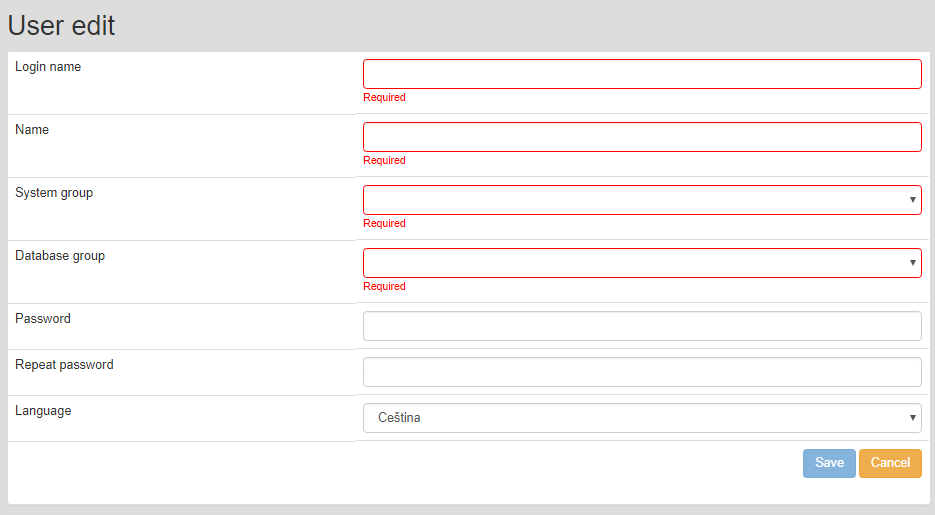
Adding new user
To update user details:
- Click the Edit button next to the user or the user’s username.
- Modify the fields as needed.
- Click Save to apply changes.
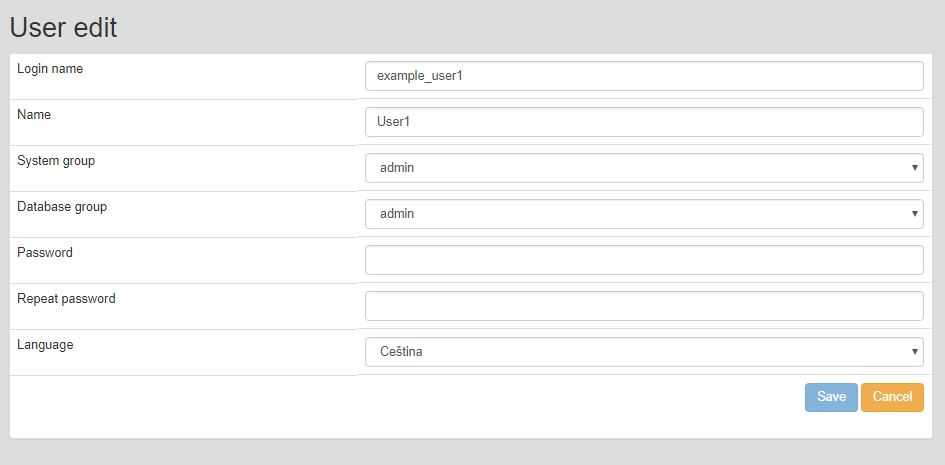
Editing user
To remove a user:
- Click the Delete button next to the user.
- In the confirmation dialog, select Delete to confirm or Cancel to abort.
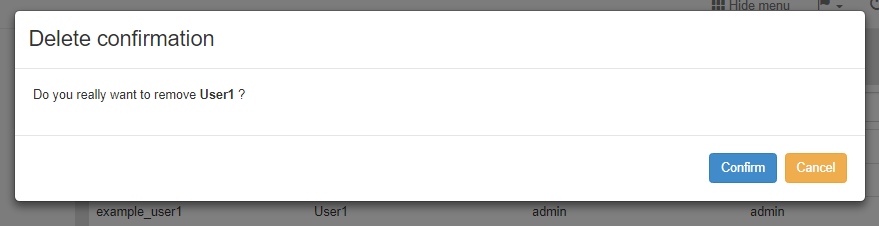
Deleting user