
System Groups
System Groups allow you to define user access permissions within the application. Each user must be assigned to at least one group and can belong to multiple groups.
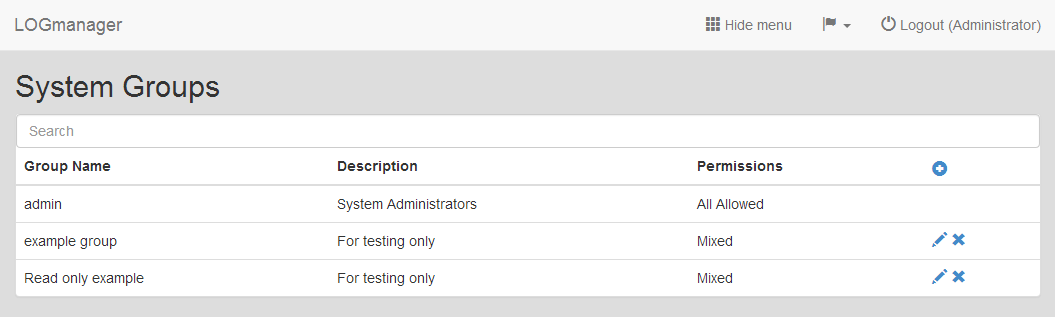
System Groups
When a user belongs to multiple groups with conflicting permission sets, the highest permission level takes precedence. For example, if one group allows write access toDashboardswhile another disallows it, the user will have write access toDashboards.
The System Groups overview displays the following information:
- Group Name: Name of the system group
- Description: Description of the system group
- Created At: Group creation date
The “Admin” group cannot be edited or deleted. All other groups can be added, edited, or deleted.
Click the Create New icon in the top right corner of the page, or click the Edit icon in the Actions column.
You will be taken to a form where you can create or edit a system group and define its permission set.
Enter the basic information:
- Name: Name of the system group
- Description: Description of the system group
In the next part of the form, define permissions for individual features of the application. Each line represents a feature where you can set one of three permission levels: none (no permission granted), read (read only), write (read, write, delete).
- My profile - Enables users to access their own account settings
- Users - Enables user access to the
Settings>UsersandSettings>Security>Authenticationmenu - Network - Enables user access to the
Settings>NetworkandSettings>Security>TLSmenu - Alerts - Enables user access to the
Processing>Alerts & Actionsmenu - Parsers - Enables user access to the
Processing>Parsers,Processing>ClassificationandProcessing>Toolsmenu - Reports - Enables user access to the
Analysis>Reportsmenu - Dashboards - Enables user access to the
Analysis>Dashboardsmenu - Search - Enables user access to the
Analysis>Discovermenu - Software - Enables user access to the
Settings>System>Softwaremenu - Component Windows - Enables user access to the
Sources>Windows agentsmenu - Component VMware - Enables user access to the
Sources>VMWaremenu - Component O365 - Enables user access to the
Sources>O365menu - Component SQL - Enables user access to the
Sources>SQLmenu - Component Azure - Enables user access to the
Sources>Azure Log Analyticsmenu - System settings - Enables user access to the
Settings>Systemmenu - Internal logs - Enables users to view internal logs
- Audit logs - Enables users to view audit logs
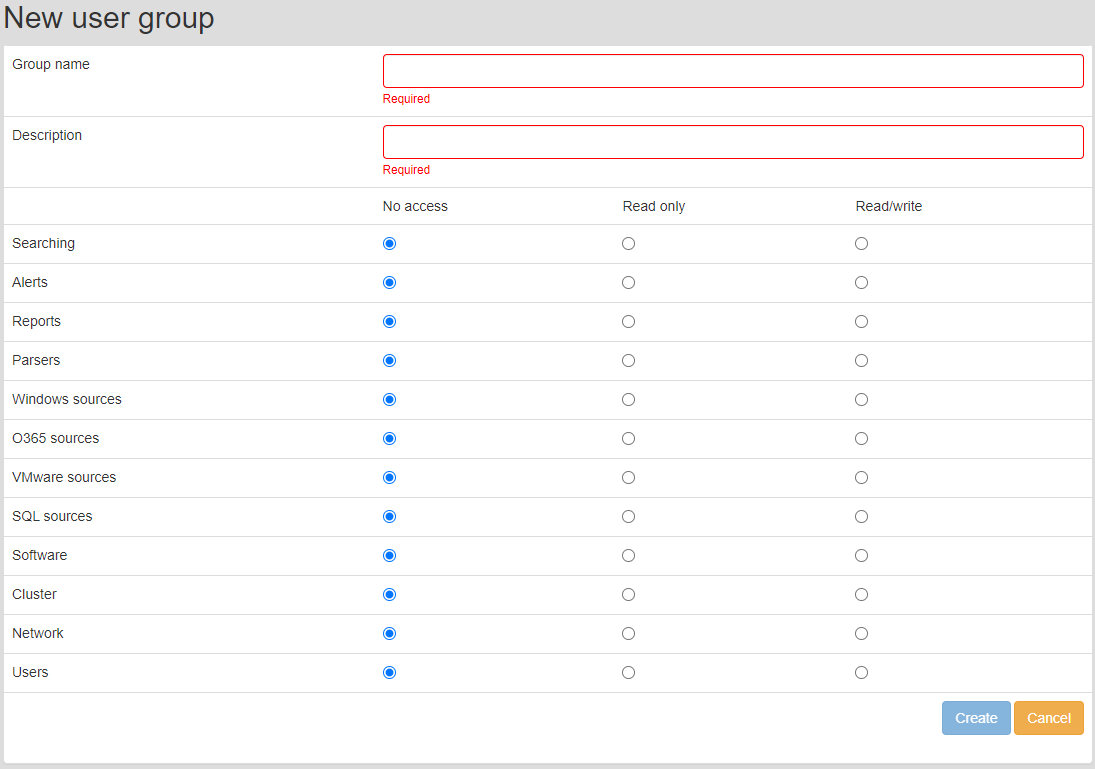
Creating new system group