
Software
The Software page provides information about the Logmanager system status and enables you to manage updates, restarts, and shutdowns.
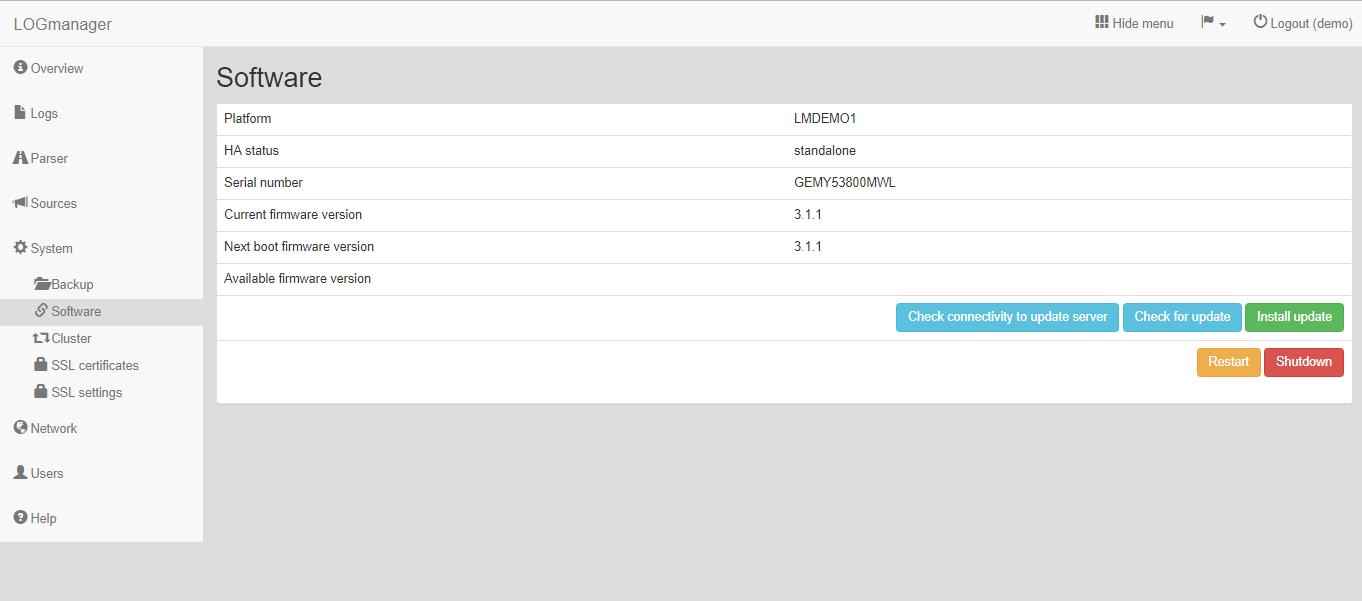
Software management interface
The section Info displays the following system details:
- Platform: The underlying platform running the Logmanager server.
- Serial number: The unique hardware or virtual identification number of the system.
- Current version: The version of the software currently running.
- Next boot version: The version that will load upon the next system start (relevant after performing an update).
To update Logmanager to the latest version, follow these steps:
- Click Check for update to query the update server.
- If a new version is available, the Install update button appears.
- If no updates are available, a notification message confirms the system is up to date.
- Click Install update to begin the installation process.
- After the installation completes, click Restart to reboot the server and apply the new version.
If you must revert to a previous software version, see the Logmanager Software downgrade guide for specific instructions and precautions.
Use the control buttons to manage the power state of the server:
- Restart: Performs a graceful reboot of the operating system and Logmanager services.
- Shut down: Power off the server.
Shutting down the server will stop all log collection and processing until the system is manually powered on again.