
LDAP settings
This part of the application allows you to configure LDAP authentication for Logmanager. When enabled, users from your LDAP directory can log into Logmanager using their existing directory service credentials.
You can enable or disable LDAP authentication by checking or unchecking Enable LDAP Login. When enabled, users from your LDAP directory can log in using their credentials.
When you enable LDAP, you must fill in all required fields and the Test LDAP connection button must return success message before you can save the form.
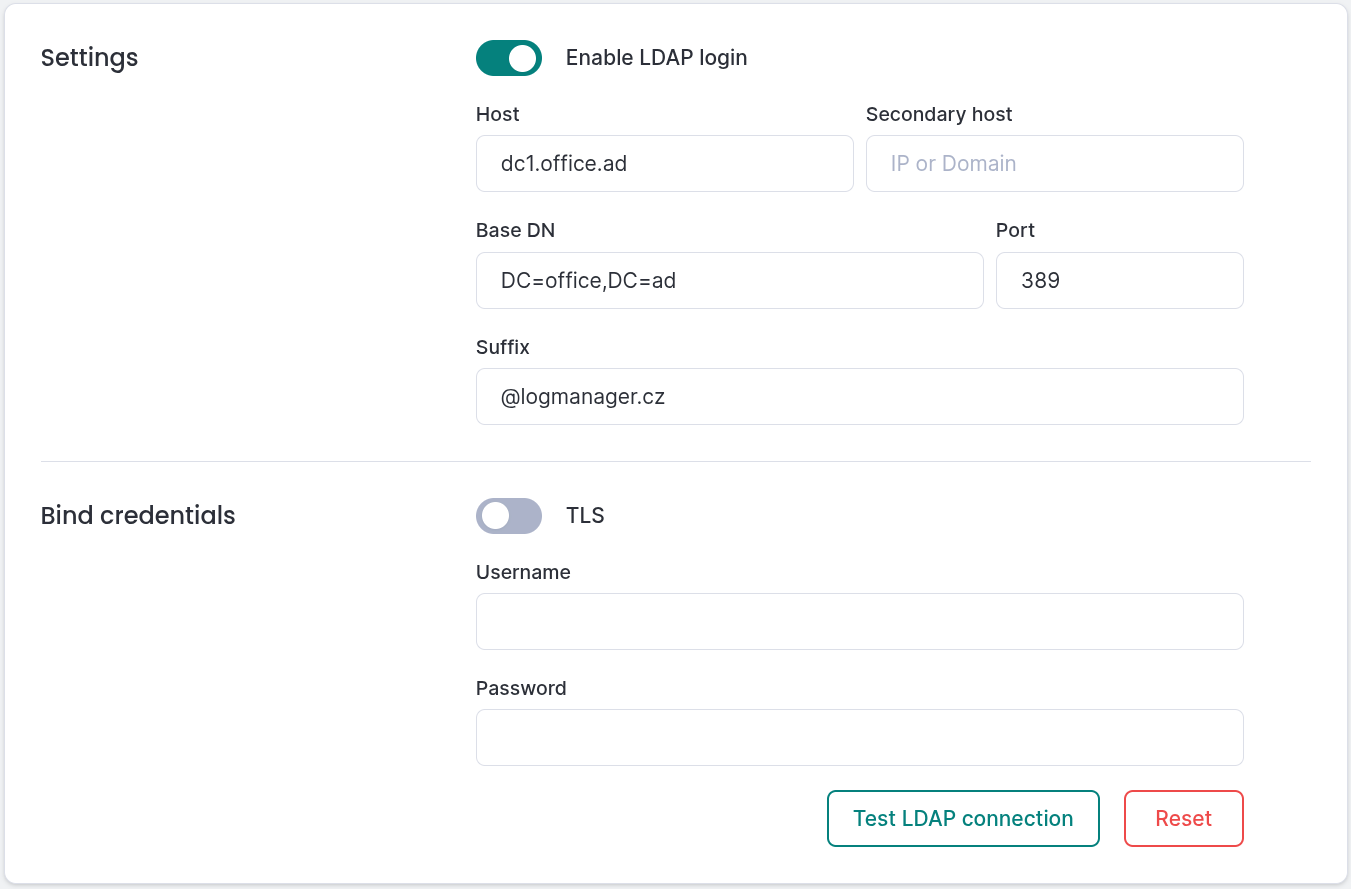
LDAP Settings
You can configure the following connection parameters:
- Host: The IP address or domain name of your LDAP server
- Secondary Host: An optional secondary LDAP server for failover
- Port: The LDAP port number
- Base DN: The base distinguished name for searching users in your directory
- Suffix: An optional suffix to append to usernames when binding
You need to provide administrative credentials to connect to your LDAP server. These credentials allow Logmanager to:
- Test the LDAP connection before saving
- Fetch user attributes (name, email) after successful authentication
- Fetch user group memberships for SSO group matching
- Verify that SSO groups exist in your LDAP directory
The administrative account must have permission to search the directory, read user attributes, and read group memberships.
- TLS: Enable TLS encryption for secure communication with the LDAP server (optional)
When TLS is enabled, the connection is encrypted but server certificates are not validated.
- Username: The distinguished name or username of an administrative account
- Password: The password for the administrative account
You must test the LDAP connection before saving the form. Click Test LDAP connection to verify:
- Connection to the LDAP server
- Administrative credentials are valid
- Base DN is correct and searchable
The Save button remains hidden until the test succeeds. If any step fails, the system displays an error message with details
The Test LDAP connection button remains available for ongoing verification of your LDAP settings.
You can reset all LDAP settings to defaults by clicking Reset. This disables LDAP authentication and clears all configuration values.
When a user attempts to log in with LDAP enabled:
- The user enters their username and password
- Logmanager connects to the LDAP server using the configured host and port
- If TLS is enabled, the connection is encrypted
- Logmanager verifies the user’s credentials against the LDAP server
- On successful authentication, Logmanager automatically creates the user in the database if they don’t exist yet
- The user’s group memberships are fetched from LDAP and matched against SSO groups
- The user is logged in and can be found in the Users overview with login type LDAP
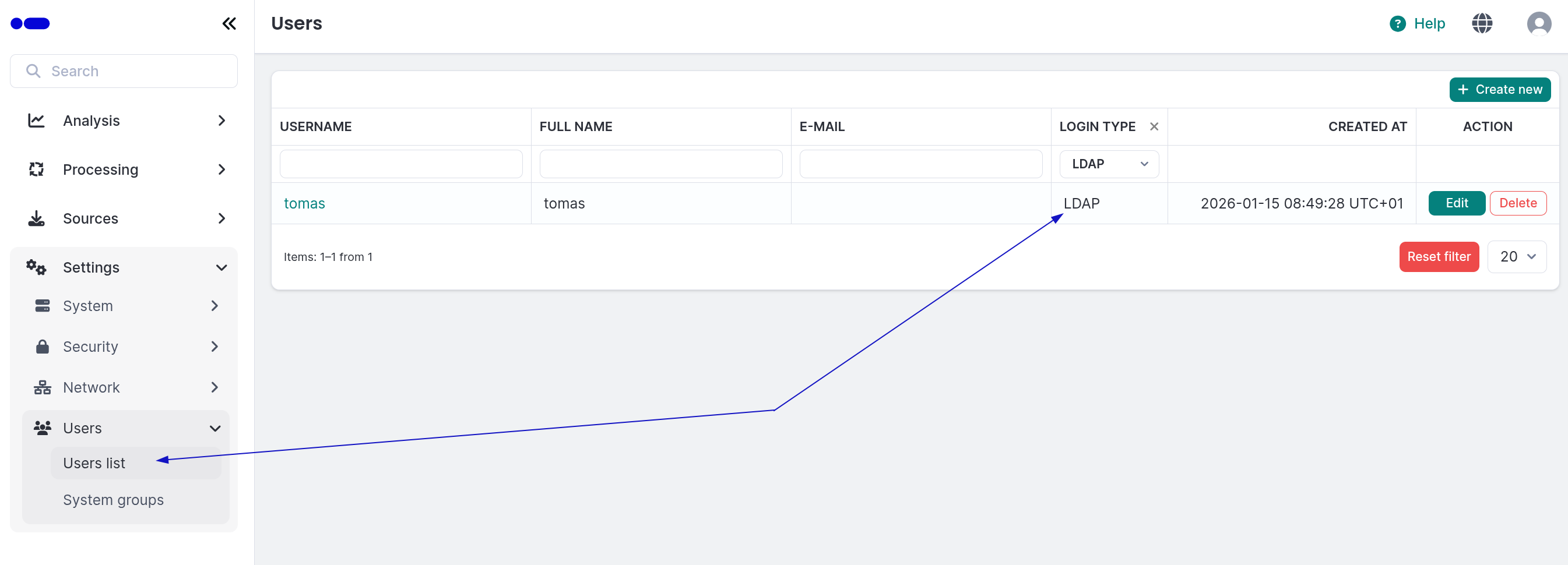
LDAP Settings
The user is created automatically on first login. You can find and manage all LDAP users in the Users section of the application.
LDAP users cannot change their credentials (username, password and fullname) in Logmanager since these are managed by the LDAP directory. However, they can change their email address in the My Profile page.
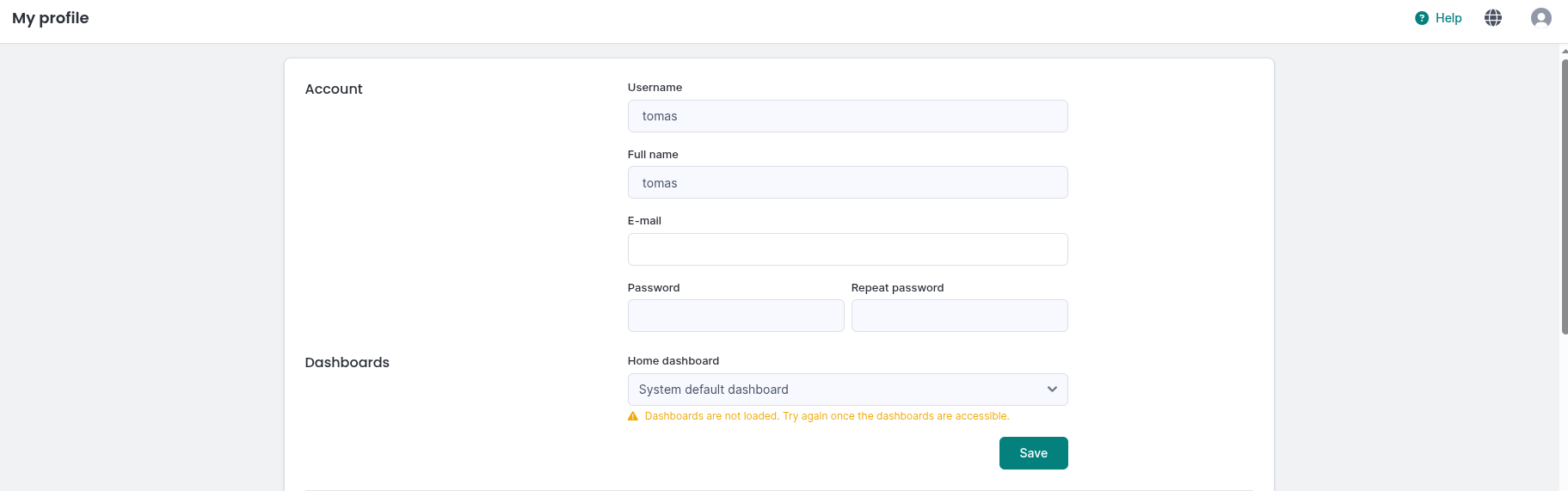
LDAP User settings in my profile
You can change the user’s email and system groups in user management.
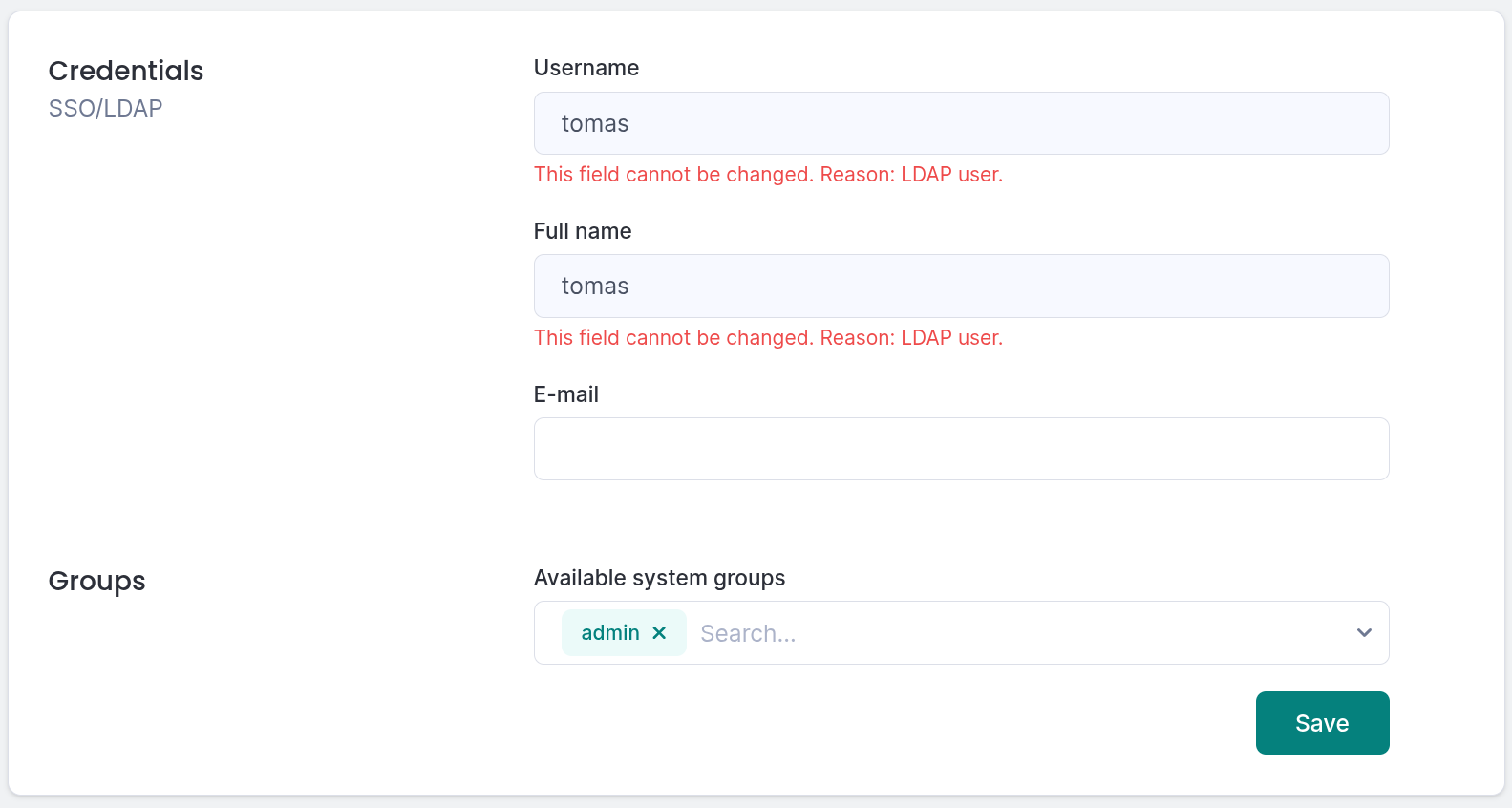
LDAP User Form