
DNS
Logmanager requires a properly configured DNS server to function. The system uses address translation in all areas. If you do not set the DNS server, the host name translation function does not work. This section provides settings for your DNS servers and contains two subsections: DNS addresses and Settings.
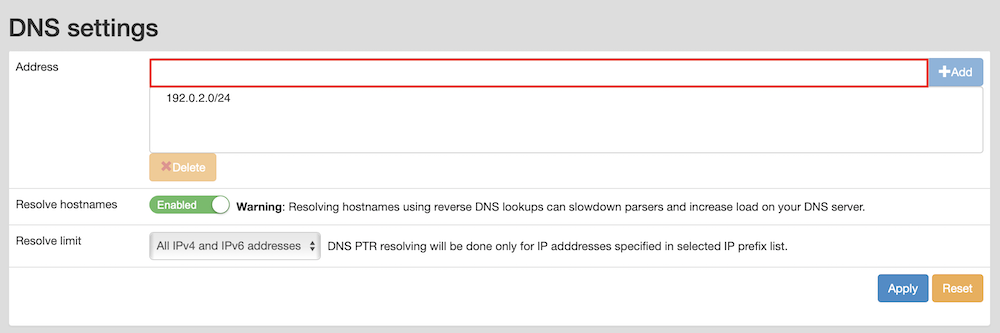
DNS section
Logmanager translates IP addresses to domain names when processing incoming messages. If the local cache contains no record for an IP address, the system automatically resends the request to your set DNS server. It is recommended to turn off logging for DNS requests (on the DNS server or firewall) sent by the Logmanager server.
You can add, delete or reset DNS addresses.
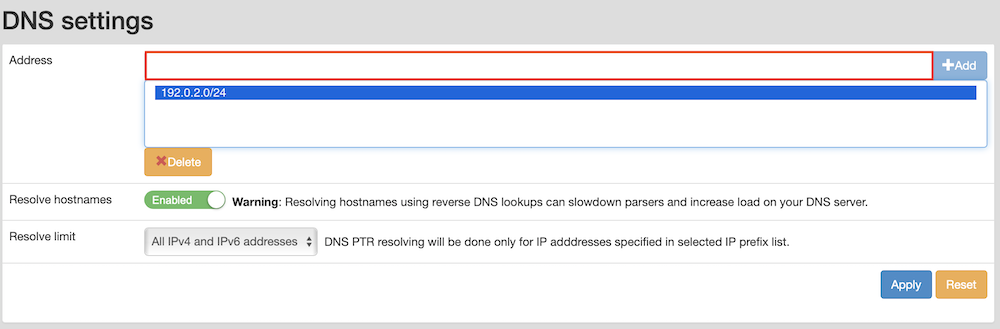
Add DNS address
- Click Add.
- Enter the DNS server address in the IP Address field.
- Click Save.
- Click Delete next to the DNS address you want to remove.
- Confirm the deletion in the dialog.
If you delete the last DNS address, Logmanager automatically resets the DNS addresses to the factory default configuration.
To revert all DNS addresses to the factory default configuration, click Reset and confirm the action.
To enable or disable DNS PTR resolving for hostnames logged to Logmanager, toggle the Resolve hostnames button.
Select specific IP address ranges for PTR record translation from the Resolve limit list. You can select any available IP prefix list. You can also define your own IP prefix list in the IP Prefix Lists section.
Logmanager only creates DNS PTR resolutions for IP addresses specified in your selected list. By default, the system selects the IP prefix list containing all IPv4 and IPv6 addresses.
To revert the DNS settings to the factory default configuration, click Reset and confirm the action.