
Tags
Tags are used to define arbitrary groups, which you can assign to individual source devices and parsers.
Every device can contain tags, which for example specify its placement, inclusion, assignment, state, etc.
You can filter the Classifiers, Templates, Parsing rules, filter data from the devices in Dashboards and create overviews based on tags.
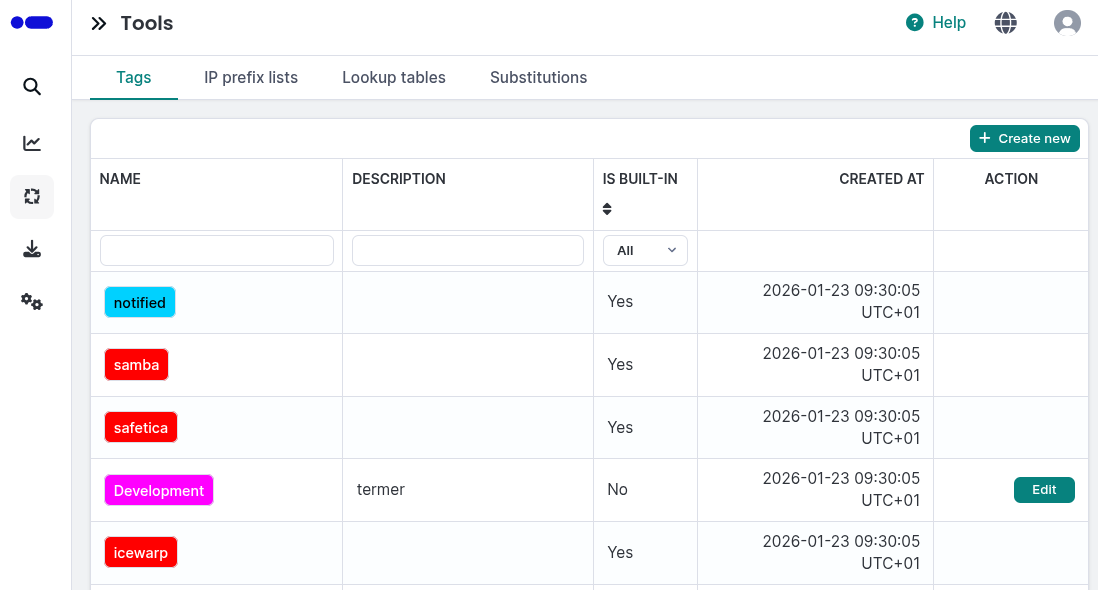
Tags overview
Every message stored in the Logmanager system contains the meta.tags attribute. Tags are assigned to incoming messages during message processing (via parsers, classifiers and alerts).
You can define the color of the font and the background color for better visual clarity.
All defined tags are loaded in the tag list and only the information about the tag name is shown (name). Above the tag list is a search box, where you can filter the records.
Tags can be added, edited and deleted. Note that built-in tags cannot be edited or deleted.
By clicking the Create new button a new form will be opened, which you can use to create a new tag.
Following information is needed:
- Name: arbitrary tag name.
- Description: optional description of the tag.
- Color: allows to select specific color or insert a HEX format value of the color.
- Background color: allows to select specific color or insert a HEX format value color of the background.
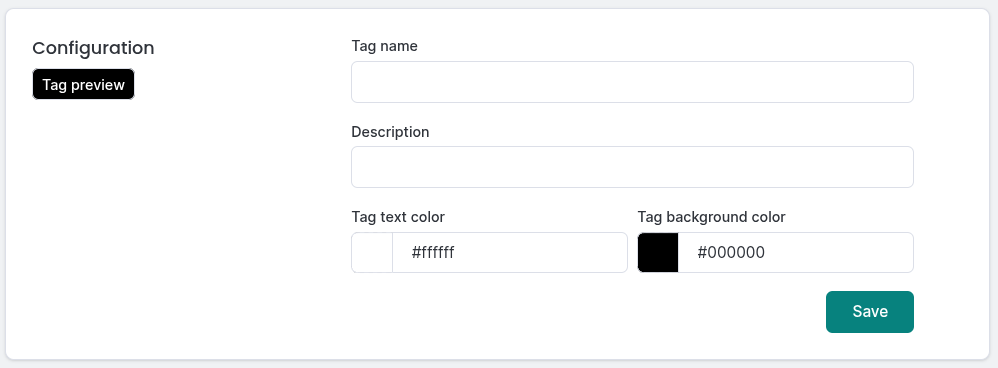
Add new tag
After you are done with inserting the information, saving of the data and creation of the new tag is done by clicking the create button. On creation, the name item is checked, since it has to be unique. By clicking the cancel button, all data is discarded and a list of the tags is shown.
Tags can be also created directly on adding or editing of a source device.
To edit an existing tag, you can click the Edit button. You can edit all details. It is still true, that the name has to be unique.
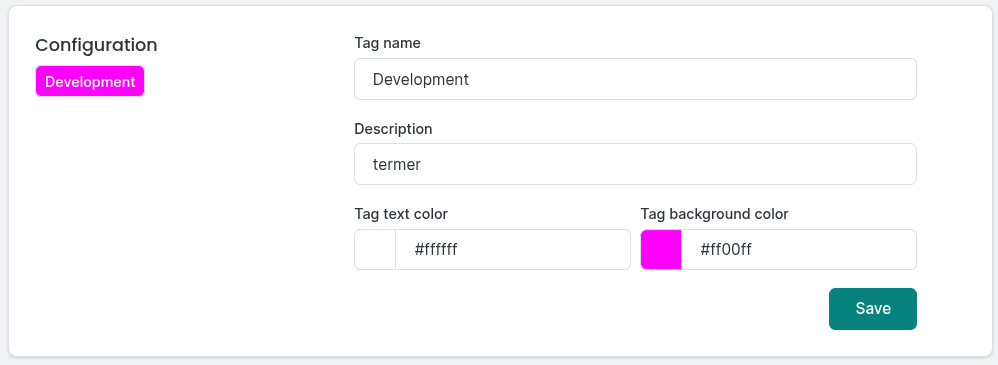
Edit tag
Changing the name of the tag will only take effect on new logs, the meta.tags attribute will remain unchanged on previous logs.
You can delete an existing tag by clicking the Delete button. This will open the deletion dialog.
Note that the delete button is not available if the tag is assigned to any source devices or if it is a built-in tag.
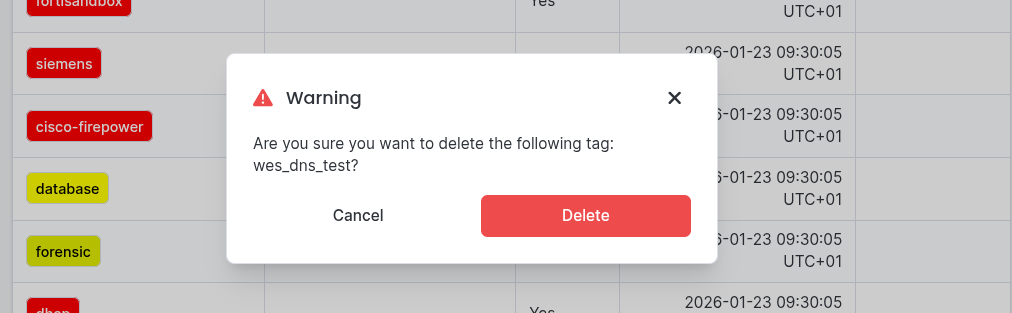
Delete tag
Removal of a tag will take effect only on new logs, attribute meta.tags will remain unchanged on previous logs.