
My profile
You can access the My profile page by clicking the user icon in the top right corner of any page:
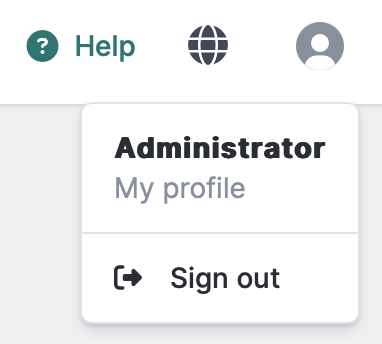
Accessing My Profile page
On this page you can configure the following account settings:
- Username
- Full name
- Password
- Default dashboard
- Enable/disable two-factor authentication
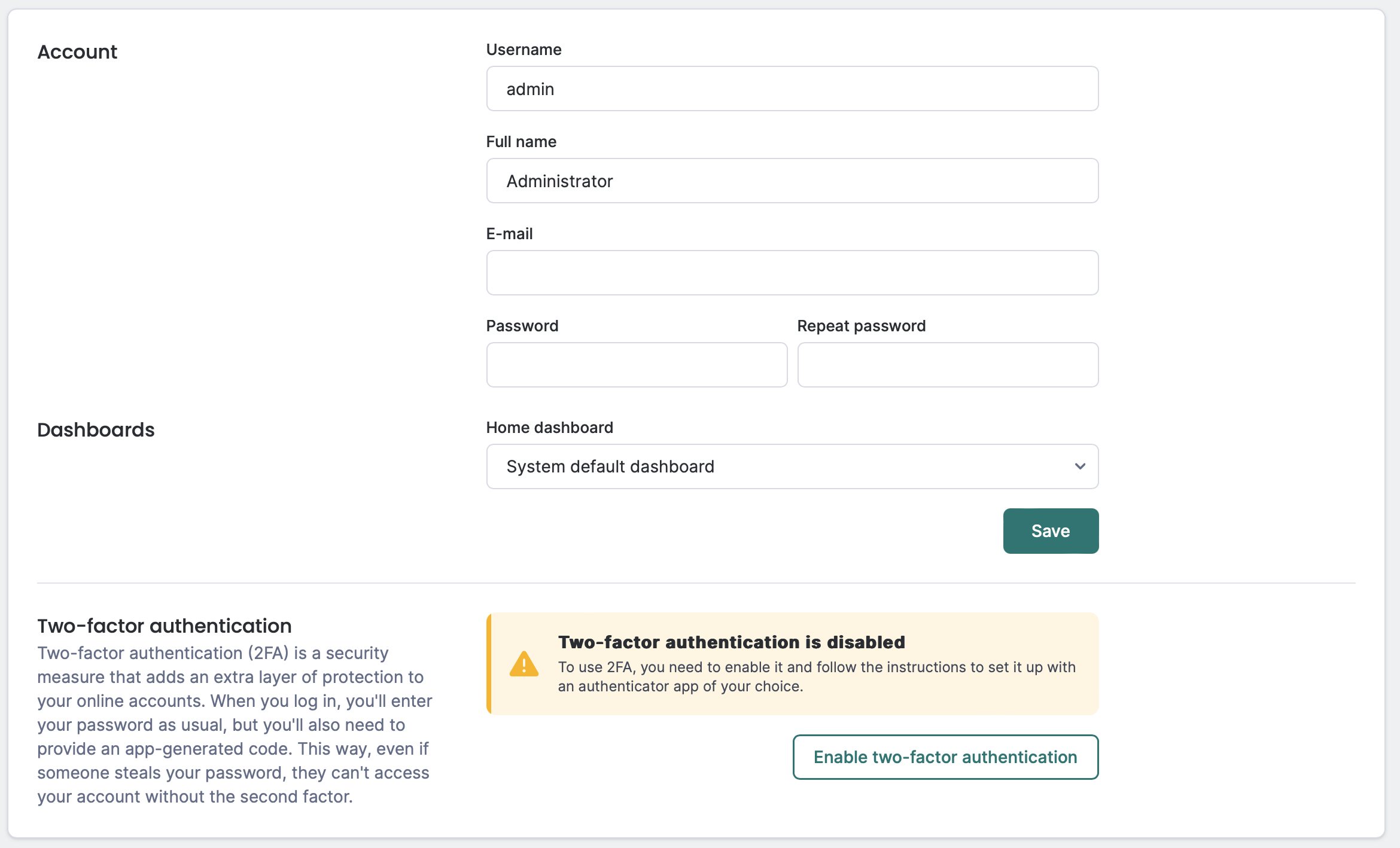
My Profile Page
Your username is assigned by an administrator and cannot be changed from this page. To update your username, contact your system administrator.
You can update your full name in the Fullname field. Click Save to apply changes.
You can update your email address in the E-mail field. This email is used for notifications and account recovery. Click Save to apply changes.
To change your password:
- Open the My profile page.
- Enter your new password in the
New passwordfield. - Re-enter your new password in the
Confirm passwordfield. - Click Save.
Your password must meet the following requirements:
- At least 5 characters
You can set your default dashboard from the pulldown list in the Dashboards > Home dashboard section. The selected dashboard will appear when you open the Analysis > Dashboard > Home menu.
Two-factor authentication (2FA) adds an extra layer of security to your account. With 2FA enabled, you need both your password and a time-based code from an authenticator app to log in. This protects your account even if someone obtains your password.
To enable 2FA on your account:
- Open the My profile page.
- In the
Two-factor authenticationsection, click Enable. - A QR code appears on the screen.
- Open your authenticator app (such as Google Authenticator, Microsoft Authenticator, or Authy) on your mobile device.
- Scan the QR code with your authenticator app.
- Enter the 6-digit verification code from your authenticator app into the verification field.
- Click Done to complete the setup.
After successful verification, 2FA is enabled for your account. You will need to provide a code from your authenticator app each time you log in.
To disable 2FA:
- Open the My profile page.
- In the
Two-factor authenticationsection, click Disable two-factor authentication. - Click Done to disable 2FA.
Your account will revert to password-only authentication.
Saving backup codes
When you enable 2FA, save the backup codes that your authenticator app provides. Store these codes in a secure location separate from your device. You can use backup codes to access your account if you lose your authenticator device.
Lost access to authenticator app
If you lose access to your authenticator app and don’t have backup codes contact Logmanager support at help@logmanager.com for assistance.
After regaining access, set up 2FA again and save the new backup codes.
You can use any TOTP (Time-based One-Time Password) compatible authenticator app, including:
- Google Authenticator (Android, iOS)
- Microsoft Authenticator (Android, iOS)
- Authy (Android, iOS, Desktop)
- FreeOTP (Android, iOS)
To end your current session:
- Click on the user icon in the top menu.
- Click Sign out.
Logging out securely ends your session and prevents unauthorized access.
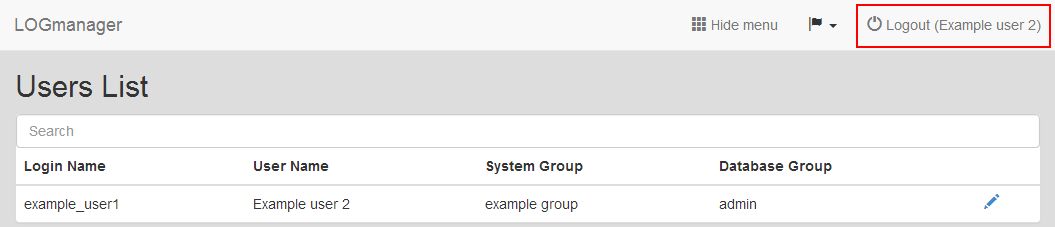
Logout